Python Excel 自动化终极篇:打造可复用的批量美化工具(附可视化操作界面)

需求

在前两篇文章中,我们依次实现了 Excel 数据的批量合并清洗、单文件样式美化,解决了从 “杂乱数据” 到 “规范报表” 的核心需求。但在实际办公场景中,纯代码脚本对非技术人员不够友好,且每次处理不同文件 / 样式都要修改代码,复用性不足。

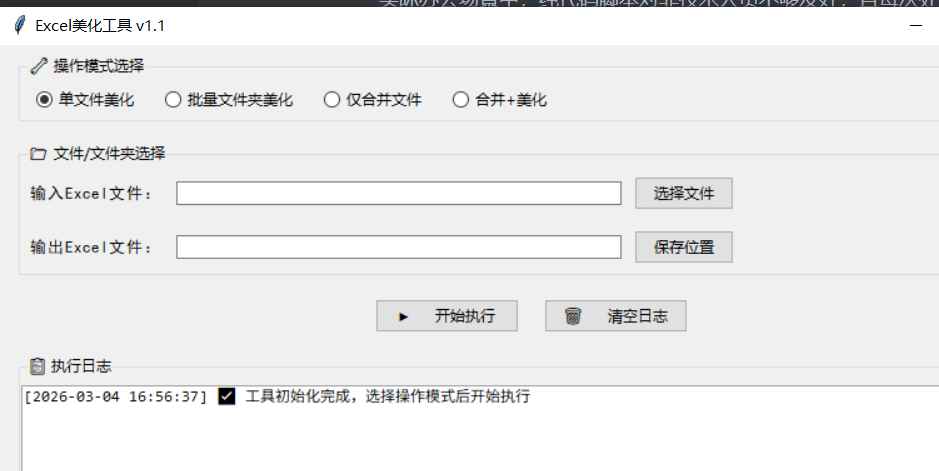
本篇作为 Excel 自动化系列的终极篇,我们将把前两篇的核心功能封装为可复用的批量处理工具,添加可视化操作界面(GUI),支持多文件批量处理、样式自定义配置,让技术和非技术人员都能一键搞定 Excel 报表美化,真正落地到日常办公中。本文将详细介绍如何基于 Python 开发一款集「单文件美化」「批量文件夹美化」「文件合并」「合并 + 美化」于一体的 Excel 美化工具,涵盖核心逻辑实现、配置化管理、GUI 界面封装全流程。

效果如下

image-20260304165657591

image-20260304165728881

一、工具核心亮点

  1. 可视化操作:基于 tkinter 打造图形界面,无需写代码,点击选择文件 / 文件夹即可操作
  2. 批量处理:支持单文件 / 多文件 / 整个文件夹的 Excel 批量美化,效率翻倍
  3. 样式可配置:内置样式配置文件,修改参数即可自定义表头颜色、关键列、对齐方式等
  4. 格式智能适配:自动识别日期列、长数字列,避免科学计数法、日期带时间等问题
  5. 容错性强:完善的文件校验、异常提示,操作出错时给出清晰指引
  6. 即开即用:打包为 exe 可执行文件,无需安装 Python 环境,全平台兼容

二、技术栈升级

在原有 pandas+openpyxl 基础上,新增:

  • tkinter:Python 内置的 GUI 库,打造可视化操作界面,零额外依赖
  • configparser:读取样式配置文件,实现样式与代码解耦
  • glob:遍历文件夹,实现多文件批量处理
  • tkinter.filedialog:文件 / 文件夹选择对话框,简化操作流程

三、完整工具代码实现

1.config.ini(配置文件)

配置文件,定义 Excel 美化的样式规则:

配置项 作用
header_* 表头字体、字号、加粗、字体颜色、背景色
key_col_bg_color 关键列(日期、skuId)背景色
key_cols/num_cols 标记关键列、数值列(用于区分样式 / 对齐方式)
min/max_col_width 列宽的最小 / 最大值,margin是列宽余量
date_format/sku_format 日期、SKU 的显示格式(SKU 设为文本避免科学计数法)

完整代码

1
2
3
4
5
6
7
8
9
10
11
12
13
14
15
16
17
18
19
20
21
22
23
24
[STYLE]
# 表头样式
header_font = 微软雅黑
header_font_size = 12
header_font_bold = True
header_font_color = FFFFFF
header_bg_color = 2F5496


# 关键列样式
key_col_bg_color = E7F0FF
key_cols = 日期,skuId

# 数值列(居中对齐)
num_cols = 加购件数,支付金额,支付买家数,支付件数

# 列宽配置(适配中英文混合计算)
min_col_width = 8
max_col_width = 50
margin = 3

# 格式配置
date_format = yyyy-mm-dd
sku_format = 0

2.excel_beautifier.py(核心美化逻辑)

核心类:ExcelBeautifier,封装所有 Excel 样式美化逻辑

函数 / 方法 作用
__init__(config_path) 初始化:读取配置文件,调用_init_styles()加载样式
_init_styles() 从配置文件解析样式(字体、填充、对齐、列宽、列类型等),初始化类属性
_calculate_col_width() 计算列宽(区分中英文:中文占 2 字符、英文占 1 字符;日期列固定 10 字符),限制最小 / 最大值
beautify_single_file() 单文件美化主逻辑:
1. 校验文件格式并读取
2. 写入 Excel 并设置表头样式
3. 数据行样式(数值列居中、文本列左对齐)
4. 关键列标色

5. 日期 / SKU 格式处理6. 调用列宽计算并应用
beautify_batch_files() 批量美化:遍历文件夹下所有 Excel,调用beautify_single_file()逐个处理

完整代码

1
2
3
4
5
6
7
8
9
10
11
12
13
14
15
16
17
18
19
20
21
22
23
24
25
26
27
28
29
30
31
32
33
34
35
36
37
38
39
40
41
42
43
44
45
46
47
48
49
50
51
52
53
54
55
56
57
58
59
60
61
62
63
64
65
66
67
68
69
70
71
72
73
74
75
76
77
78
79
80
81
82
83
84
85
86
87
88
89
90
91
92
93
94
95
96
97
98
99
100
101
102
103
104
105
106
107
108
109
110
111
112
113
114
115
116
117
118
119
120
121
122
123
124
125
126
127
128
129
130
131
132
133
134
135
136
137
138
139
140
141
142
143
144
145
146
147
148
149
150
151
152
153
154
155
156
157
158
159
160
161
162
163
164
165
166
167
168
169
170
171
172
173
174
175
176
177
178
179
180
181
182
183
184
185
186
187
188
189
190
191
192
193
194
195
import pandas as pd
import os
import configparser
from openpyxl.styles import Font, PatternFill, Border, Side, Alignment
from openpyxl.utils import get_column_letter

class ExcelBeautifier:
def __init__(self, config_path="config.ini"):
# 读取配置文件
self.config = configparser.ConfigParser()
if not os.path.exists(config_path):
raise FileNotFoundError(f"配置文件 {config_path} 不存在")
self.config.read(config_path, encoding="utf-8")
self._init_styles()

def _init_styles(self):
"""初始化样式模板(从配置文件读取)"""
# 表头样式
self.header_font = Font(
name=self.config.get("STYLE", "header_font", fallback="微软雅黑"),
size=int(self.config.get("STYLE", "header_font_size", fallback=12)),
bold=self.config.getboolean("STYLE", "header_font_bold", fallback=True),
color=self.config.get("STYLE", "header_font_color", fallback="FFFFFF")
)
self.header_fill = PatternFill(
start_color=self.config.get("STYLE", "header_bg_color", fallback="2F5496"),
end_color=self.config.get("STYLE", "header_bg_color", fallback="2F5496"),
fill_type="solid"
)
self.header_align = Alignment(horizontal="center", vertical="center", wrap_text=True)

# 全局边框
self.thin_border = Border(
left=Side(style="thin", color="000000"),
right=Side(style="thin", color="000000"),
top=Side(style="thin", color="000000"),
bottom=Side(style="thin", color="000000")
)

# 关键列样式
self.key_col_fill = PatternFill(
start_color=self.config.get("STYLE", "key_col_bg_color", fallback="E7F0FF"),
end_color=self.config.get("STYLE", "key_col_bg_color", fallback="E7F0FF"),
fill_type="solid"
)

# 对齐方式
self.num_align = Alignment(horizontal="center", vertical="center")
self.text_align = Alignment(horizontal="left", vertical="center")

# 列宽配置
self.min_col_width = int(self.config.get("STYLE", "min_col_width", fallback=8))
self.max_col_width = int(self.config.get("STYLE", "max_col_width", fallback=50))
self.margin = int(self.config.get("STYLE", "margin", fallback=3))

# 格式配置
self.date_format = self.config.get("STYLE", "date_format", fallback="yyyy-mm-dd")
self.sku_format = self.config.get("STYLE", "sku_format", fallback="@")

# 列类型配置
self.key_cols = [col.strip() for col in self.config.get("STYLE", "key_cols", fallback="日期,skuId").split(",")]
self.num_cols = [col.strip() for col in self.config.get("STYLE", "num_cols", fallback="加购件数,支付金额").split(",")]

def _calculate_col_width(self, worksheet, df):
"""列宽计算逻辑(区分中英文/日期格式)"""
# 定位日期列
date_column_letter = None
if '日期' in df.columns:
date_col_idx = df.columns.get_loc('日期') + 1
date_column_letter = get_column_letter(date_col_idx)

# 遍历所有列计算宽度
for col in worksheet.columns:
max_length = 0
column_letter = get_column_letter(col[0].column)

for cell in col:
if cell.value is None:
cell_length = 0
else:
# 特殊处理日期列:按格式化后的长度计算(固定10)
if column_letter == date_column_letter:
try:
cell_value = pd.to_datetime(cell.value)
cell_content = cell_value.strftime('%Y-%m-%d')
cell_length = len(cell_content)
except:
cell_content = str(cell.value)
cell_length = sum(2 if '\u4e00' <= c <= '\u9fff' else 1 for c in cell_content)
else:
# 区分中英文计算长度(中文占2个字符,英文占1个)
cell_content = str(cell.value)
cell_length = sum(2 if '\u4e00' <= c <= '\u9fff' else 1 for c in cell_content)

if cell_length > max_length:
max_length = cell_length

# 调整列宽(限制最大/最小值)
adjusted_width = max_length + self.margin
adjusted_width = max(adjusted_width, self.min_col_width)
adjusted_width = min(adjusted_width, self.max_col_width)
worksheet.column_dimensions[column_letter].width = adjusted_width

def beautify_single_file(self, input_file, output_file):
"""美化单个Excel文件"""
# 文件校验
if not os.path.exists(input_file):
return False, f"错误:文件 {input_file} 不存在"

try:
# 根据后缀选择读取引擎
if input_file.lower().endswith('.xlsx'):
df = pd.read_excel(input_file, engine="openpyxl")
elif input_file.lower().endswith('.xls'):
df = pd.read_excel(input_file, engine="xlrd")
else:
return False, f"错误:不支持的文件格式 {input_file}"
except Exception as e:
return False, f"读取文件失败:{str(e)}"

# 写入Excel并美化
try:
with pd.ExcelWriter(output_file, engine="openpyxl") as writer:
df.to_excel(writer, sheet_name="清洗合并数据", index=False)
ws = writer.sheets["清洗合并数据"]

# 1. 设置表头样式
for cell in ws[1]:
cell.font = self.header_font
cell.fill = self.header_fill
cell.alignment = self.header_align
cell.border = self.thin_border

# 2. 设置数据行样式(区分数值/文本列对齐)
max_row = ws.max_row
max_col = ws.max_column
for row in ws.iter_rows(min_row=2, max_row=max_row, min_col=1, max_col=max_col):
for cell in row:
cell.border = self.thin_border
col_name = df.columns[cell.column - 1]
if col_name in self.num_cols:
cell.alignment = self.num_align
else:
cell.alignment = self.text_align

# 3. 关键列标色
for col in ws.iter_cols(min_row=2, max_row=max_row, min_col=1, max_col=max_col):
col_name = df.columns[col[0].column - 1]
if col_name in self.key_cols:
for cell in col:
cell.fill = self.key_col_fill

# 4. 特殊列格式处理
# 日期列
if '日期' in df.columns:
date_col_idx = df.columns.get_loc('日期') + 1
for cell in ws.iter_cols(min_col=date_col_idx, max_col=date_col_idx, min_row=2, max_row=max_row):
for c in cell:
c.number_format = self.date_format
# skuId列(强制文本)
if 'skuId' in df.columns:
sku_col_idx = df.columns.get_loc('skuId') + 1
for row in range(2, max_row + 1):
cell = ws.cell(row=row, column=sku_col_idx)
cell.number_format = self.sku_format
cell.alignment = self.text_align
cell.border = self.thin_border

# 5. 列宽自适应
self._calculate_col_width(ws, df)

return True, f"成功:{output_file}"
except Exception as e:
return False, f"美化失败:{str(e)}"

def beautify_batch_files(self, input_dir, output_dir):
"""批量美化文件夹下的所有Excel文件"""
if not os.path.exists(input_dir):
return False, f"错误:文件夹 {input_dir} 不存在"

os.makedirs(output_dir, exist_ok=True)
excel_files = [f for f in os.listdir(input_dir) if (f.endswith(".xlsx") or f.endswith(".xls")) and not f.startswith('~$')]

if not excel_files:
return False, "错误:文件夹中未找到有效Excel文件"

# 遍历文件夹下所有 Excel,调用beautify_single_file()逐个处理
result = []
for file in excel_files:
input_path = os.path.join(input_dir, file)
output_path = os.path.join(output_dir, f"美化_{file}")
success, msg = self.beautify_single_file(input_path, output_path)
result.append(f"{file}{msg}")

return True, "\n".join(result)

3.merge_and_beautify.py(数据合并 + 清洗)

函数 作用
merge_excel_files() 批量合并 Excel 并清洗:
1. 遍历文件夹,跳过前 5 行读取 Excel
2. 给数据标记来源文件
3. 合并所有数据并填充空值
4. 处理 SKU 格式(去.0
5. 从文件名提取日期并移到第一列
6. 过滤无效数据(加购件数≥0)
7. 保存清洗后的合并文件
merge_and_beautify() 一站式合并 + 美化:
1. 调用merge_excel_files()合并清洗
2. 调用ExcelBeautifier美化合并后的文件

完整代码

1
2
3
4
5
6
7
8
9
10
11
12
13
14
15
16
17
18
19
20
21
22
23
24
25
26
27
28
29
30
31
32
33
34
35
36
37
38
39
40
41
42
43
44
45
46
47
48
49
50
51
52
53
54
55
56
57
58
59
60
61
62
63
64
65
66
67
68
69
70
71
72
73
74
75
import os
import pandas as pd
from excel_beautifier import ExcelBeautifier

def merge_excel_files(folder_path, merge_output_file):
"""批量读取文件夹下的Excel文件并做数据清洗"""
all_data = []
# 遍历文件夹中的所有Excel文件
for filename in os.listdir(folder_path):
if (filename.endswith('.xls') or filename.endswith('.xlsx')) and not filename.startswith('~$'):
file_path = os.path.join(folder_path, filename)
try:
# 跳过前5行(适配原始数据格式)
if filename.lower().endswith('.xlsx'):
df = pd.read_excel(file_path, skiprows=5, engine="openpyxl")
else:
df = pd.read_excel(file_path, skiprows=5, engine="xlrd")
df['来源文件'] = filename
all_data.append(df)
except Exception as e:
print(f"读取文件 {filename} 失败:{str(e)}")
continue

if not all_data:
print("未找到有效Excel文件!")
return False

# 合并数据并清洗
combined_df = pd.concat(all_data, ignore_index=True).fillna(0)
# 处理skuId格式(防止科学计数法)
if 'skuId' in combined_df.columns:
combined_df['skuId'] = combined_df['skuId'].astype(str).str.replace(r'\.0$', '', regex=True).str.strip()
# 提取日期列(从文件名)
if '来源文件' in combined_df.columns:
combined_df['日期'] = combined_df['来源文件'].str.rsplit('.', n=1).str[0].str[-10:]
combined_df['日期'] = pd.to_datetime(combined_df['日期'], errors='coerce').dt.date.fillna("未知")
combined_df = combined_df.drop(columns=['来源文件'])
# 调整日期列到第一列
if '日期' in combined_df.columns:
cols = combined_df.columns.tolist()
cols.insert(0, cols.pop(cols.index('日期')))
combined_df = combined_df[cols]
# 过滤无效数据
if '加购件数' in combined_df.columns:
combined_df = combined_df[combined_df['加购件数'] >= 0]

# 保存清洗后的文件
combined_df.to_excel(merge_output_file, index=False, engine="openpyxl")
return True

def merge_and_beautify(input_folder, merge_output_file, final_output_file):
"""调用merge_excel_files()合并清洗,再调用ExcelBeautifier美化"""
# 第一步:合并并清洗数据
merge_success = merge_excel_files(input_folder, merge_output_file)
if not merge_success:
print("数据合并失败,终止美化流程")
return False

# 第二步:美化Excel
beautifier = ExcelBeautifier()
success, msg = beautifier.beautify_single_file(merge_output_file, final_output_file)
if success:
print(f"✅ 合并+美化完成!最终文件:{final_output_file}")
return True
else:
print(f"❌ 美化失败:{msg}")
return False

if __name__ == "__main__":
# 示例配置(根据实际路径修改)
input_folder = "C:/Users/会港/Downloads/data"
merge_output_file = "C:/Users/会港/Downloads/清洗后的合并数据.xlsx"
final_output_file = "C:/Users/会港/Downloads/带样式_清洗后的合并数据.xlsx"
# 执行合并+美化
merge_and_beautify(input_folder, merge_output_file, final_output_file)

4.gui.py(图形界面)

核心类:ExcelBeautifierGUI,封装 TKinter 界面逻辑

函数 / 方法 作用
__init__(root) 初始化 GUI:设置窗口标题 / 大小,加载ExcelBeautifier,创建主界面
_create_main_frame() 创建界面组件:模式选择、输入输出选择、按钮、日志区域
_show_single_mode() 切换到「单文件美化」界面:显示输入 / 输出文件选择框
_show_batch_mode() 切换到「批量美化」界面:显示输入 / 输出文件夹选择框
_show_merge_mode() 切换到「合并 / 合并 + 美化」界面:显示输入文件夹 + 输出文件选择框
_switch_mode() 响应单选按钮,切换不同模式的界面
_select_file/_save_file 打开文件选择对话框,设置输入 / 输出文件路径
_select_dir() 打开文件夹选择对话框,设置输入 / 输出文件夹路径
_log() 输出带时间戳的日志到界面文本框
_clear_log() 清空日志文本框
_execute() 执行核心逻辑:
1. 单文件:调用beautify_single_file()
2. 批量:调用beautify_batch_files()
3. 仅合并:调用merge_excel_files()
4. 合并 + 美化:调用merge_and_beautify()

完整代码

1
2
3
4
5
6
7
8
9
10
11
12
13
14
15
16
17
18
19
20
21
22
23
24
25
26
27
28
29
30
31
32
33
34
35
36
37
38
39
40
41
42
43
44
45
46
47
48
49
50
51
52
53
54
55
56
57
58
59
60
61
62
63
64
65
66
67
68
69
70
71
72
73
74
75
76
77
78
79
80
81
82
83
84
85
86
87
88
89
90
91
92
93
94
95
96
97
98
99
100
101
102
103
104
105
106
107
108
109
110
111
112
113
114
115
116
117
118
119
120
121
122
123
124
125
126
127
128
129
130
131
132
133
134
135
136
137
138
139
140
141
142
143
144
145
146
147
148
149
150
151
152
153
154
155
156
157
158
159
160
161
162
163
164
165
166
167
168
169
170
171
172
173
174
175
176
177
178
179
180
181
182
183
184
185
186
187
188
189
190
191
192
193
194
195
196
197
198
199
200
201
202
203
204
205
206
207
208
209
210
211
212
213
214
215
216
217
218
219
220
221
222
223
224
225
226
227
228
229
230
231
232
233
234
235
236
237
238
239
240
241
242
243
244
245
246
247
248
249
250
251
252
253
254
255
256
import tkinter as tk
from tkinter import ttk, filedialog, messagebox
import os
import sys
import time

# 解决路径问题,确保能导入同级模块
sys.path.append(os.path.dirname(os.path.abspath(__file__)))
from excel_beautifier import ExcelBeautifier
from merge_and_beautify import merge_excel_files, merge_and_beautify

class ExcelBeautifierGUI:
def __init__(self, root):
"""初始化GUI界面"""
self.root = root
self.root.title("Excel美化工具 v1.1")
self.root.geometry("850x650")
self.root.resizable(width=False, height=False)

# 初始化美化器
try:
self.beautifier = ExcelBeautifier()
except Exception as e:
messagebox.showerror("初始化失败", f"配置文件加载出错:{str(e)}")
self.root.quit()
return

# 操作模式变量
self.mode_var = tk.StringVar(value="single")

# 创建界面
self._create_main_frame()

def _create_main_frame(self):
"""创建主界面"""
# 1. 模式选择
mode_frame = ttk.LabelFrame(self.root, text="🔧 操作模式选择")
mode_frame.pack(fill="x", padx=15, pady=8)

ttk.Radiobutton(mode_frame, text="单文件美化", variable=self.mode_var, value="single", command=self._switch_mode).pack(side="left", padx=10, pady=5)
ttk.Radiobutton(mode_frame, text="批量文件夹美化", variable=self.mode_var, value="batch", command=self._switch_mode).pack(side="left", padx=10, pady=5)
ttk.Radiobutton(mode_frame, text="仅合并文件", variable=self.mode_var, value="merge", command=self._switch_mode).pack(side="left", padx=10, pady=5)
ttk.Radiobutton(mode_frame, text="合并+美化", variable=self.mode_var, value="merge_beautify", command=self._switch_mode).pack(side="left", padx=10, pady=5)

# 2. 输入输出选择区域
self.io_frame = ttk.LabelFrame(self.root, text="📁 文件/文件夹选择")
self.io_frame.pack(fill="x", padx=15, pady=8)

# 初始化路径变量
self.single_input = tk.StringVar()
self.single_output = tk.StringVar()
self.batch_input = tk.StringVar()
self.batch_output = tk.StringVar()
self.merge_output = tk.StringVar()

# 默认显示单文件模式
self._show_single_mode()

# 3. 按钮区域
btn_frame = ttk.Frame(self.root)
btn_frame.pack(pady=10)
ttk.Button(btn_frame, text="▶️ 开始执行", command=self._execute, width=15).pack(side="left", padx=10)
ttk.Button(btn_frame, text="🗑️ 清空日志", command=self._clear_log, width=15).pack(side="left", padx=10)

# 4. 日志区域
log_frame = ttk.LabelFrame(self.root, text="📋 执行日志")
log_frame.pack(fill="both", expand=True, padx=15, pady=8)

self.log_text = tk.Text(log_frame, font=("Consolas", 9), wrap=tk.WORD)
scrollbar = ttk.Scrollbar(log_frame, orient="vertical", command=self.log_text.yview)
self.log_text.configure(yscrollcommand=scrollbar.set)
self.log_text.pack(side="left", fill="both", expand=True, padx=(0, 5), pady=5)
scrollbar.pack(side="right", fill="y", pady=5)

# 初始化日志
self._log("✅ 工具初始化完成,选择操作模式后开始执行")

def _show_single_mode(self):
"""显示单文件模式"""
for widget in self.io_frame.winfo_children():
widget.destroy()

# 输入文件
ttk.Label(self.io_frame, text="输入Excel文件:").grid(row=0, column=0, padx=5, pady=8, sticky="w")
ttk.Entry(self.io_frame, textvariable=self.single_input, width=50).grid(row=0, column=1, padx=5, pady=8)
ttk.Button(self.io_frame, text="选择文件", command=lambda: self._select_file(self.single_input), width=10).grid(row=0, column=2, padx=5, pady=8)

# 输出文件
ttk.Label(self.io_frame, text="输出Excel文件:").grid(row=1, column=0, padx=5, pady=8, sticky="w")
ttk.Entry(self.io_frame, textvariable=self.single_output, width=50).grid(row=1, column=1, padx=5, pady=8)
ttk.Button(self.io_frame, text="保存位置", command=lambda: self._save_file(self.single_output), width=10).grid(row=1, column=2, padx=5, pady=8)

def _show_batch_mode(self):
"""显示批量模式"""
for widget in self.io_frame.winfo_children():
widget.destroy()

# 输入文件夹
ttk.Label(self.io_frame, text="输入文件夹:").grid(row=0, column=0, padx=5, pady=8, sticky="w")
ttk.Entry(self.io_frame, textvariable=self.batch_input, width=50).grid(row=0, column=1, padx=5, pady=8)
ttk.Button(self.io_frame, text="选择文件夹", command=lambda: self._select_dir(self.batch_input), width=10).grid(row=0, column=2, padx=5, pady=8)

# 输出文件夹
ttk.Label(self.io_frame, text="输出文件夹:").grid(row=1, column=0, padx=5, pady=8, sticky="w")
ttk.Entry(self.io_frame, textvariable=self.batch_output, width=50).grid(row=1, column=1, padx=5, pady=8)
ttk.Button(self.io_frame, text="选择文件夹", command=lambda: self._select_dir(self.batch_output), width=10).grid(row=1, column=2, padx=5, pady=8)

def _show_merge_mode(self):
"""显示合并模式(仅合并/合并+美化)"""
for widget in self.io_frame.winfo_children():
widget.destroy()

# 输入文件夹
ttk.Label(self.io_frame, text="输入文件夹:").grid(row=0, column=0, padx=5, pady=8, sticky="w")
ttk.Entry(self.io_frame, textvariable=self.batch_input, width=50).grid(row=0, column=1, padx=5, pady=8)
ttk.Button(self.io_frame, text="选择文件夹", command=lambda: self._select_dir(self.batch_input), width=10).grid(row=0, column=2, padx=5, pady=8)

# 输出文件
ttk.Label(self.io_frame, text="输出Excel文件:").grid(row=1, column=0, padx=5, pady=8, sticky="w")
ttk.Entry(self.io_frame, textvariable=self.merge_output, width=50).grid(row=1, column=1, padx=5, pady=8)
ttk.Button(self.io_frame, text="保存位置", command=lambda: self._save_file(self.merge_output), width=10).grid(row=1, column=2, padx=5, pady=8)

def _switch_mode(self):
"""切换操作模式"""
mode = self.mode_var.get()
if mode == "single":
self._show_single_mode()
self._log("🔄 切换到【单文件美化】模式")
elif mode == "batch":
self._show_batch_mode()
self._log("🔄 切换到【批量文件夹美化】模式")
elif mode in ["merge", "merge_beautify"]:
self._show_merge_mode()
self._log(f"🔄 切换到【{'仅合并文件' if mode=='merge' else '合并+美化'}】模式")

def _select_file(self, var):
"""选择文件"""
file_path = filedialog.askopenfilename(title="选择Excel文件", filetypes=[("Excel文件", "*.xlsx *.xls"), ("所有文件", "*.*")])
if file_path:
var.set(file_path)

def _save_file(self, var):
"""选择保存文件路径"""
file_path = filedialog.asksaveasfilename(title="保存Excel文件", defaultextension=".xlsx", filetypes=[("Excel文件", "*.xlsx"), ("所有文件", "*.*")])
if file_path:
var.set(file_path)

def _select_dir(self, var):
"""选择文件夹"""
dir_path = filedialog.askdirectory(title="选择文件夹")
if dir_path:
var.set(dir_path)

def _log(self, msg):
"""输出日志"""
timestamp = time.strftime("[%Y-%m-%d %H:%M:%S]")
self.log_text.insert(tk.END, f"{timestamp} {msg}\n")
self.log_text.see(tk.END)
self.root.update_idletasks()

def _clear_log(self):
"""清空日志"""
self.log_text.delete(1.0, tk.END)
self._log("✅ 日志已清空")

def _execute(self):
"""执行核心操作"""
mode = self.mode_var.get()
self._log("="*50)

try:
if mode == "single":
# 单文件美化
input_path = self.single_input.get().strip()
output_path = self.single_output.get().strip()
if not input_path or not output_path:
raise ValueError("请选择输入文件和输出文件路径")
if not os.path.exists(input_path):
raise FileNotFoundError(f"输入文件不存在:{input_path}")

self._log(f"🚀 开始美化单文件:{input_path}")
success, msg = self.beautifier.beautify_single_file(input_path, output_path)
self._log(f"📝 执行结果:{msg}")
messagebox.showinfo("成功" if success else "失败", msg)

elif mode == "batch":
# 批量美化
input_dir = self.batch_input.get().strip()
output_dir = self.batch_output.get().strip()
if not input_dir or not output_dir:
raise ValueError("请选择输入文件夹和输出文件夹路径")
if not os.path.exists(input_dir):
raise FileNotFoundError(f"输入文件夹不存在:{input_dir}")

self._log(f"🚀 开始批量美化文件夹:{input_dir}")
success, msg = self.beautifier.beautify_batch_files(input_dir, output_dir)
self._log(f"📝 执行结果:\n{msg}")
messagebox.showinfo("成功" if success else "失败", msg)

elif mode == "merge":
# 仅合并
input_dir = self.batch_input.get().strip()
output_path = self.merge_output.get().strip()
if not input_dir or not output_path:
raise ValueError("请选择输入文件夹和输出文件路径")
if not os.path.exists(input_dir):
raise FileNotFoundError(f"输入文件夹不存在:{input_dir}")

self._log(f"🚀 开始仅合并文件:{input_dir}")
merge_success = merge_excel_files(input_dir, output_path)
if merge_success:
self._log(f"✅ 仅合并完成!输出文件:{output_path}")
messagebox.showinfo("成功", "文件合并完成!")
else:
self._log("❌ 合并失败!")
messagebox.showerror("失败", "文件合并失败,请查看日志")

elif mode == "merge_beautify":
# 合并+美化
input_dir = self.batch_input.get().strip()
output_path = self.merge_output.get().strip()
if not input_dir or not output_path:
raise ValueError("请选择输入文件夹和输出文件路径")
if not os.path.exists(input_dir):
raise FileNotFoundError(f"输入文件夹不存在:{input_dir}")

# 创建临时文件
temp_file = os.path.join(os.path.dirname(output_path), "temp_merge.xlsx")
self._log(f"🚀 开始合并+美化:{input_dir}")
success = merge_and_beautify(input_dir, temp_file, output_path)

# 删除临时文件
if os.path.exists(temp_file):
try:
os.remove(temp_file)
self._log(f"🗑️ 删除临时文件:{temp_file}")
except:
self._log(f"⚠️ 临时文件 {temp_file} 被占用,未删除")

if success:
self._log(f"✅ 合并+美化完成!输出文件:{output_path}")
messagebox.showinfo("成功", "合并+美化完成!")
else:
self._log("❌ 合并+美化失败!")
messagebox.showerror("失败", "合并+美化失败,请查看日志")

except Exception as e:
error_msg = f"❌ 执行出错:{str(e)}"
self._log(error_msg)
messagebox.showerror("执行错误", error_msg)

if __name__ == "__main__":
root = tk.Tk()
root.option_add("*Font", "SimHei 10") # 解决tkinter中文显示
app = ExcelBeautifierGUI(root)
root.mainloop()

5.run_tool.py(启动入口)

代码逻辑 作用
主函数 初始化 TKinter 根窗口,设置全局中文字体,启动ExcelBeautifierGUI界面
1
2
3
4
5
6
7
8
import tkinter as tk
from gui import ExcelBeautifierGUI

if __name__ == "__main__":
root = tk.Tk()
root.option_add("*Font", "SimHei 10") # 全局设置中文显示字体
app = ExcelBeautifierGUI(root)
root.mainloop()

四、工具使用教程

1. 环境准备(开发 / 使用)

(1)开发环境

1
2
# 安装依赖
pip install pandas openpyxl configparser

(2)直接使用(非技术人员)

  • 将代码打包为 exe 可执行文件(使用 pyinstaller):

    1
    2
    pip install pyinstaller
    pyinstaller -F -w --add-data "config.ini;." gui.py
  • 把exe放到与配置文件同目录下,双击生成的Excel美化工具.exe即可打开界面,无需安装 Python。

2. 操作步骤

场景 1:单文件美化(GUI 操作)

1
2
3
4
5
run_tool.py → gui.py (ExcelBeautifierGUI.__init__) 
→ 选择「单文件美化」→ 选输入/输出文件 → 点击「开始执行」
→ gui.py (_execute) → excel_beautifier.py (beautify_single_file)
→ 内部调用:_init_styles() → 样式初始化
→ 内部调用:_calculate_col_width() → 列宽计算

场景 2:批量文件夹美化(GUI 操作)

1
2
3
4
5
run_tool.py → gui.py (ExcelBeautifierGUI.__init__) 
→ 选择「批量文件夹美化」→ 选输入/输出文件夹 → 点击「开始执行」
→ gui.py (_execute) → excel_beautifier.py (beautify_batch_files)
→ 遍历文件 → 逐个调用 beautify_single_file()
→ 内部调用:_init_styles() + _calculate_col_width()

场景 3:仅合并文件(GUI 操作)

1
2
3
4
run_tool.py → gui.py (ExcelBeautifierGUI.__init__) 
→ 选择「仅合并文件」→ 选输入文件夹/输出文件 → 点击「开始执行」
→ gui.py (_execute) → merge_and_beautify.py (merge_excel_files)
→ 遍历文件 → 合并+清洗 → 保存合并文件

场景 4:合并 + 美化(GUI 操作)

1
2
3
4
5
6
7
run_tool.py → gui.py (ExcelBeautifierGUI.__init__) 
→ 选择「合并+美化」→ 选输入文件夹/输出文件 → 点击「开始执行」
→ gui.py (_execute) → merge_and_beautify.py (merge_and_beautify)
→ 第一步:调用 merge_excel_files() 合并清洗
→ 第二步:调用 excel_beautifier.py (beautify_single_file) 美化
→ 内部调用:_init_styles() + _calculate_col_width()
→ 删除临时合并文件 → 输出最终美化文件

场景 5:纯代码调用(无 GUI)

1
2
3
4
5
6
7
8
# 示例1:单文件美化
from excel_beautifier import ExcelBeautifier
beautifier = ExcelBeautifier()
beautifier.beautify_single_file("输入.xlsx", "输出.xlsx")

# 示例2:合并+美化
from merge_and_beautify import merge_and_beautify
merge_and_beautify("输入文件夹", "临时合并文件.xlsx", "最终美化文件.xlsx")

五、工具扩展方向

  1. 样式模板库:内置多套样式模板(简约 / 商务 / 高亮),一键切换
  2. 数据校验功能:添加数据缺失、格式错误的校验和提示
  3. 邮件发送:美化完成后自动将报表发送给指定邮箱
  4. 定时执行:结合 Windows 任务计划程序,定时处理指定文件夹的 Excel
  5. 多格式导出:支持将美化后的 Excel 导出为 PDF/CSV/ 图片
  6. 历史记录:记录每次处理的文件路径、时间,方便追溯

六、系列总结

从 “数据合并清洗”→“单文件样式美化”→“批量可视化工具”,我们完成了 Excel 办公自动化的完整闭环:

  1. 基础层:解决数据杂乱、格式不统一的问题,输出干净的数据文件
  2. 美化层:给数据添加专业样式,提升报表可读性和专业性
  3. 工具层:封装为可视化工具,降低使用门槛,实现批量处理和复用

这套自动化方案能覆盖 80% 以上的 Excel 报表场景,将原本需要 1-2 小时的手工操作缩短到 1 分钟内完成,真正实现 “一次开发,终身复用”。无论是数据分析人员、行政人员还是业务人员,都能从中解放双手,把精力投入到更有价值的工作中。

后续我们还可以将这套工具集成到企业内部的办公系统,结合数据库、BI 工具,打造更完整的数据分析自动化解决方案。